The menu across the top of every page.
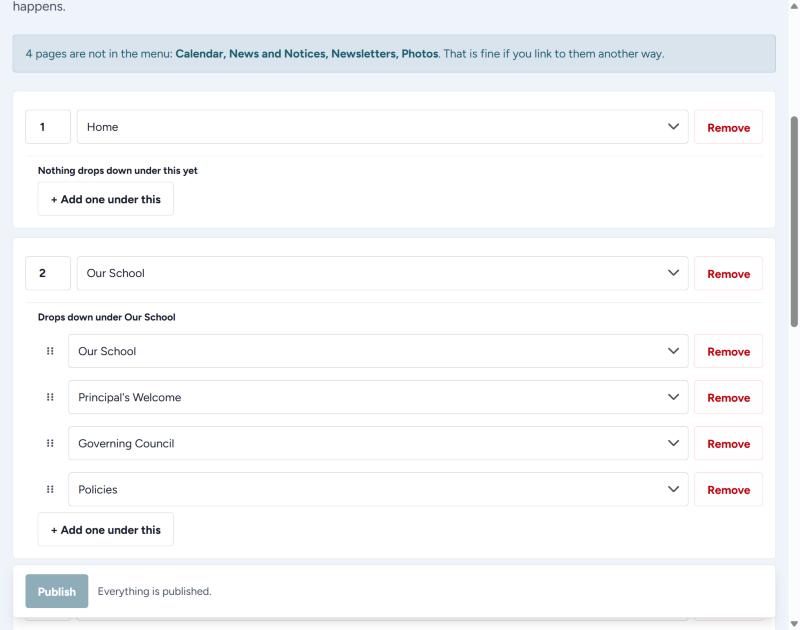
How it works
- Each menu item is just the page it points at. It shows that page's name, so renaming a page renames the menu too.
- Change a number to move a top-level item along the bar.
- Drag the items underneath to reorder what drops down.
Adding something to the menu
- Press + Add a menu item for a new item along the top, or + Add one under this to put it in a drop-down.
- Choose the page from the dropdown.
- Set its number if it should sit somewhere particular.
- Press Publish.
Finish what you start
A menu item with no page chosen stops you publishing, and the screen says so. Either pick a page for it or press Remove.
Two helpful messages
- "3 pages are not in the menu" — just so you know. That is fine if you link to them another way.
- A page that is switched off — such as photos or notices — keeps its place here but is not drawn on the website, and comes back the moment the page is switched on again. You do not need to change anything here when that happens.